Reading Assistant
Reading Assistant https://help.heredis.com/wp-content/themes/corpus/images/empty/thumbnail.jpg 150 150 Heredis Help Knowledgebase https://help.heredis.com/wp-content/themes/corpus/images/empty/thumbnail.jpgHeredis includes an AI-powered feature to assist with transcribing records.
This tool allows you to transcribe records and also provides access to their translations if they are written in another language.
In addition, Heredis can instantly create the events and individuals described in the record.
Note: This tool is designed to assist you in deciphering old documents. It will be of great help to you, but the transcription may not be perfect, depending on the condition of the original document, the image, and the type and quality of the handwriting.
The assistant can be accessed from:
– Media Index
– the Media tab for an event or a source
– Photo tool
On these screens, you’ll find the icon  which allows you to access the assistant directly.
Analyzing an act
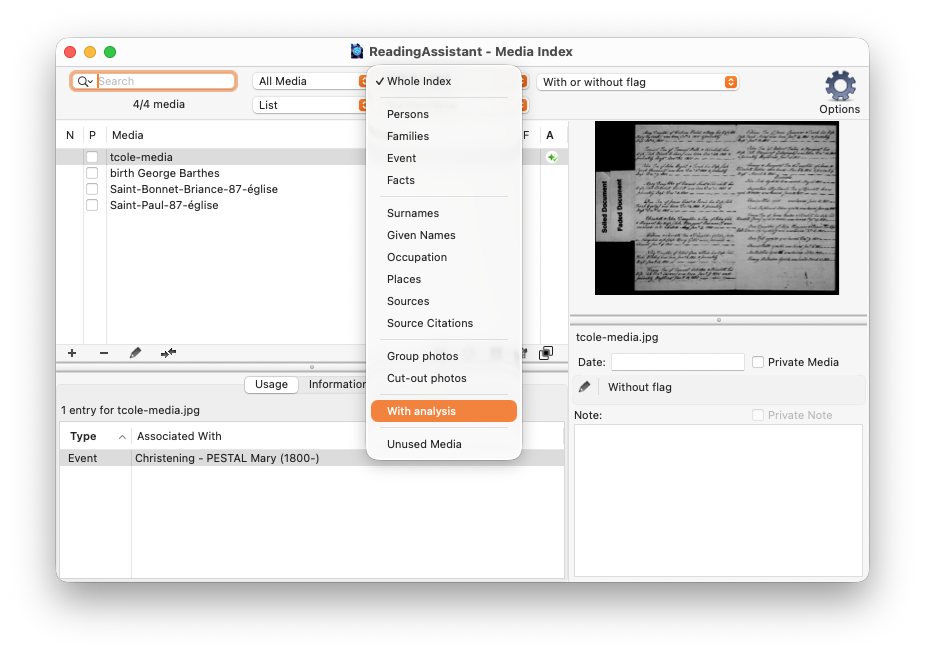
In the Media Index, select a media representing an act. Click the button  to open it.
In the media editing window, click the Reading Assistant icon.
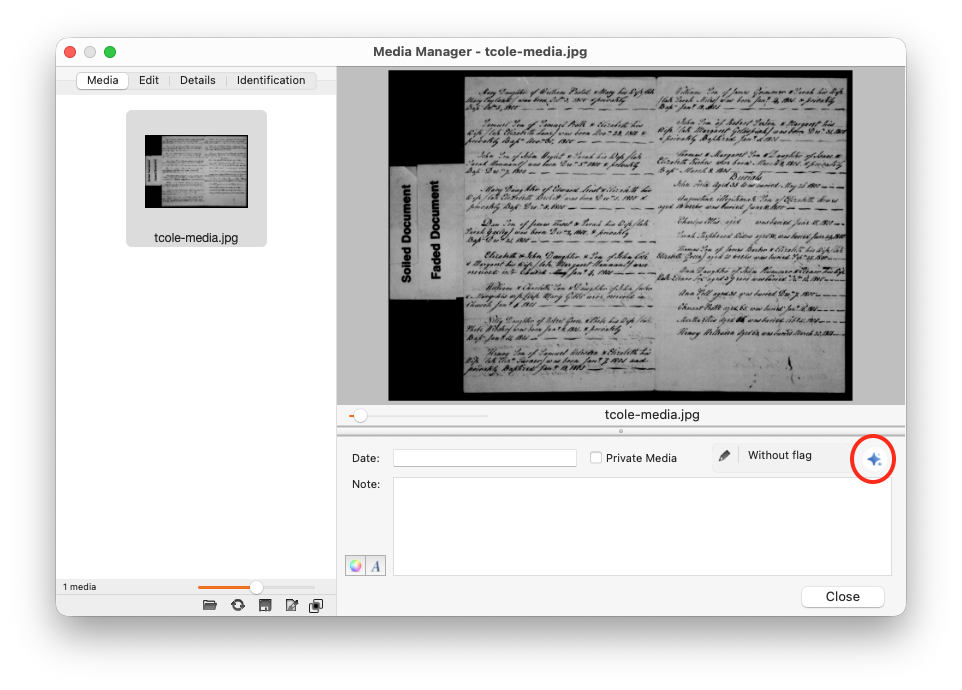
The reading assistant opens, indicating that this image has not yet been analyzed.
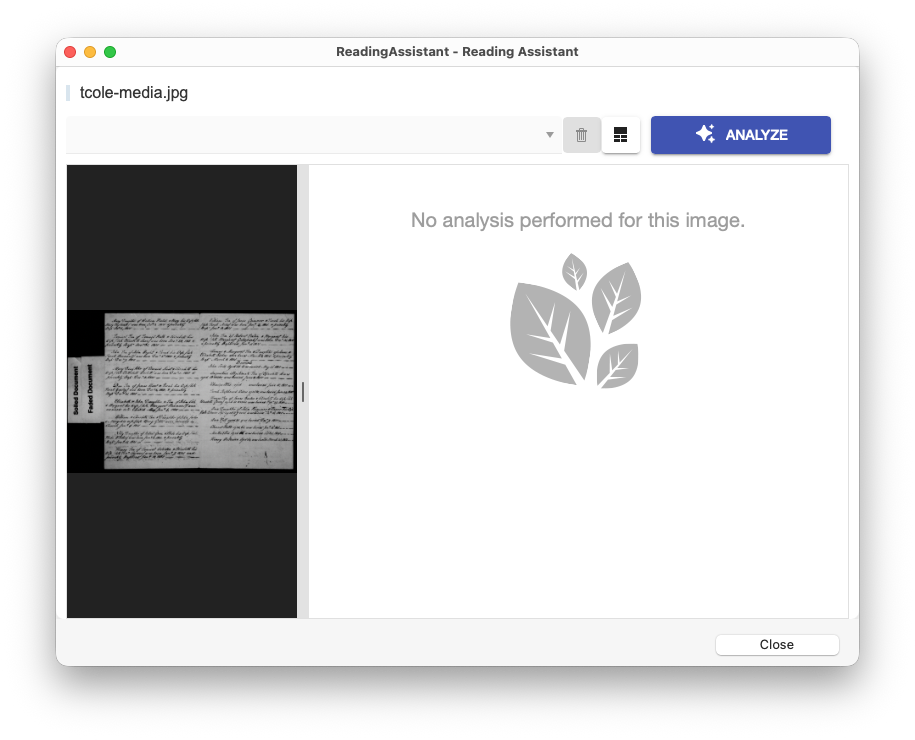
Click the Analyze button.
If you are not logged in to Heredis Online, this screen will appear.
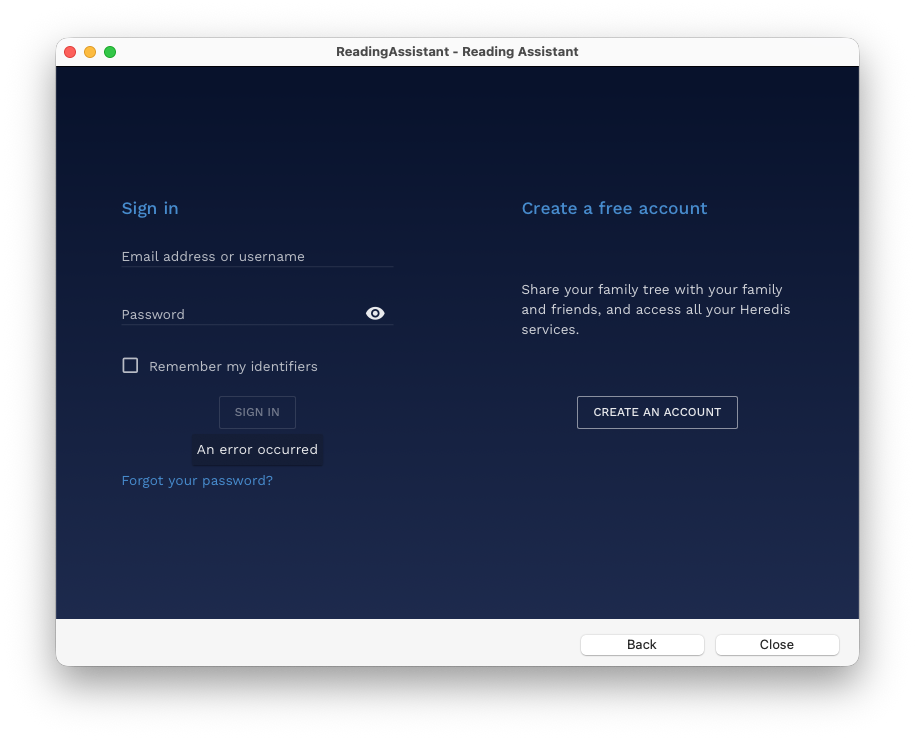
Log in to Heredis Online to access this feature..
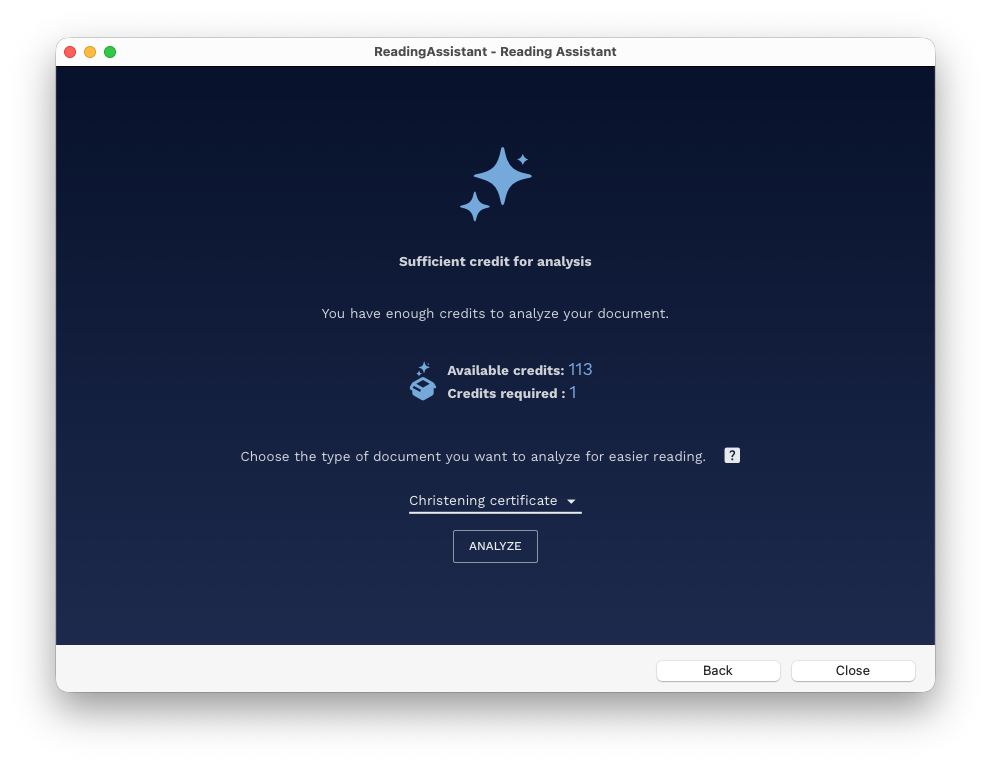
The window that appears will tell you whether you have enough credits to run an analysis. If you don’t, you’ll see a button to purchase credits directly from the Heredis store.
Note: this window shows the number of credits available in your software.
Select the type of record, “Christening Certificate” in our example.
If the record you want to analyze isn’t on the list, select “Deciphering.”
Click the Analyze button.
A window will appear indicating that processing is in progress. Please wait until processing is complete.
The results will then be displayed. You can view details for each event and person that the analysis detected.
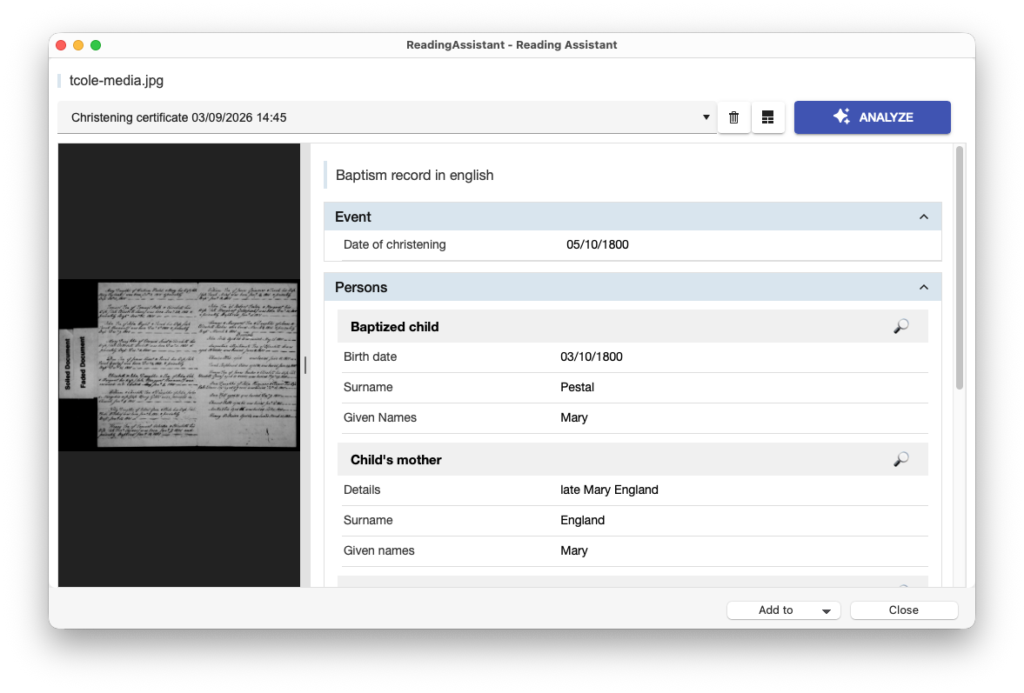
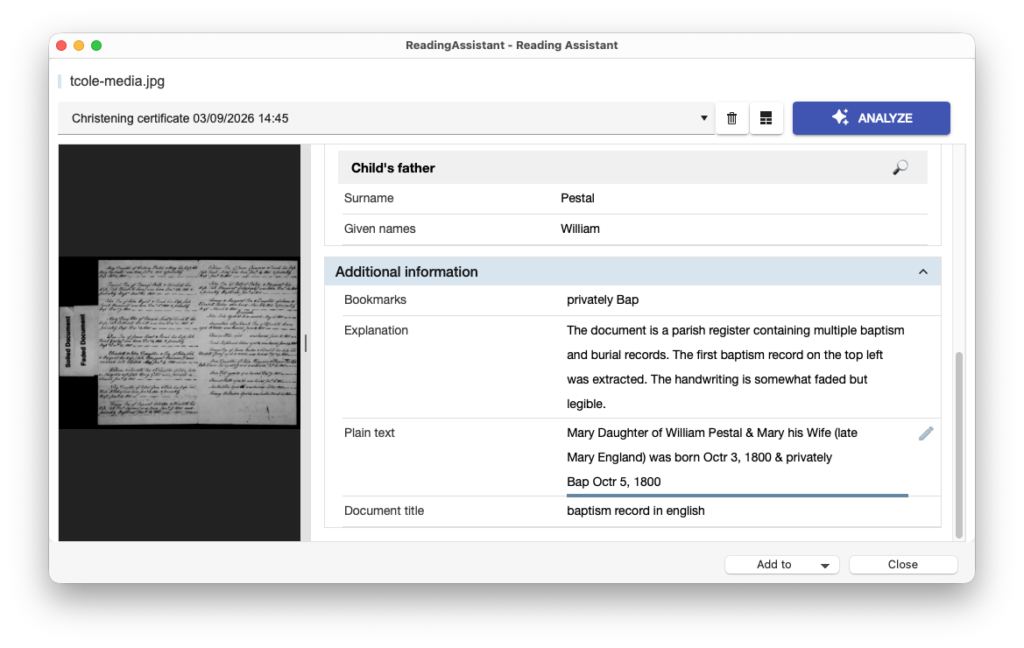
As well as other informations including the plain text of the transcript.
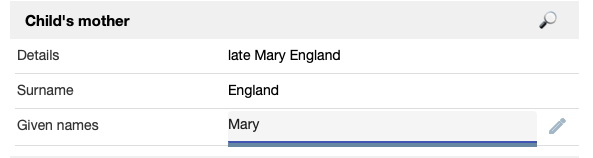
If any information appears to be incorrect, click directly in the relevant field and edit the text as desired.
You can also click the Magnifying Glass button to match a person from the analysis to a person in your file, to avoid creating duplicates. You can do the same for the places.
Generate data based on the analysis
Click the Add to button.
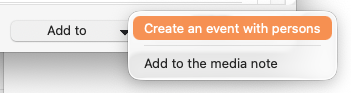
You can simply add the text from this analysis directly to your media note.
But you can also have Heredis generate the data for you by clicking on Create an event with persons.
A summary window opens, displaying the data that will be created at the top.
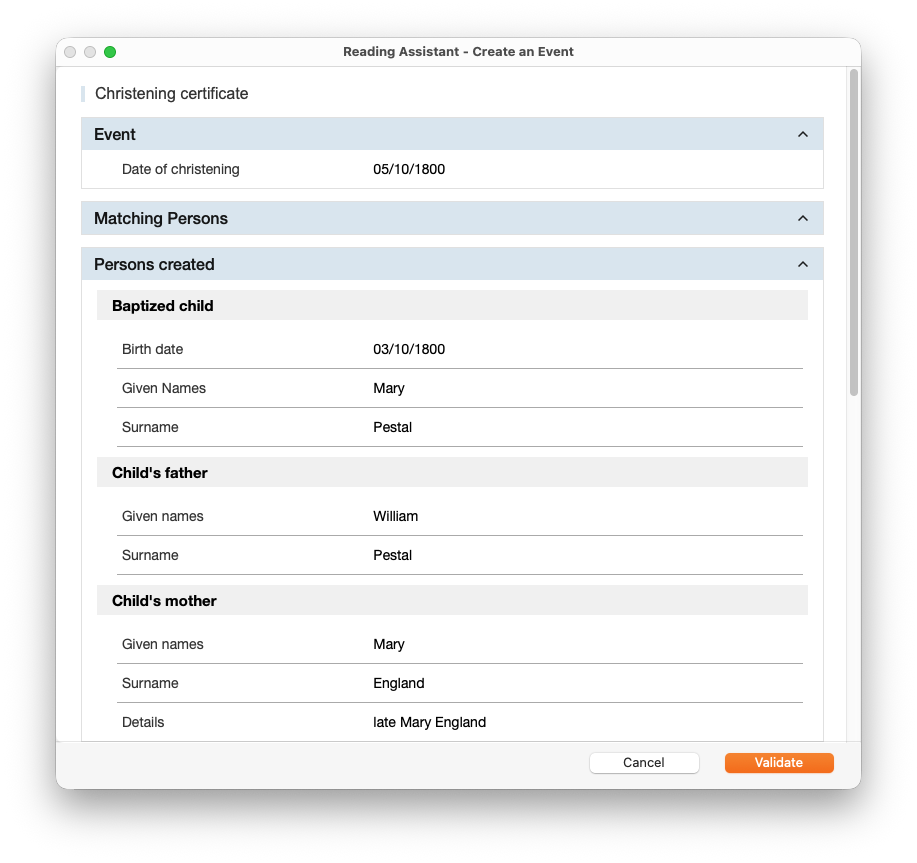
In the lower section, you’ll find three major sections:
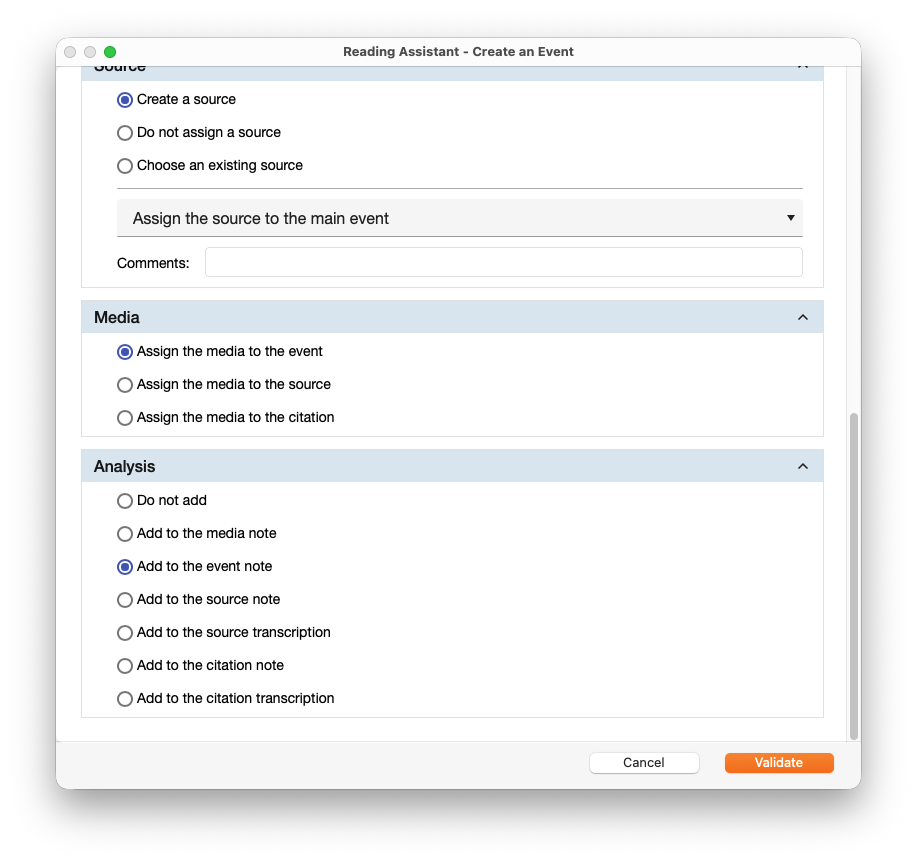
– Source: Choose to create a source, use an existing one from your Source Index, or simply not use a source for this event.
You can assign this source either only to the main event in the transcribed record or to all events that will be created by this function.
Finally, add a comment for the citation of this source.
– Media: Assign the document image either to the created event or to its source.
– Analysis: Add the full text of the document’s transcription to the element of your choice.
Click “Validate”.
Heredis automatically creates the event described in the record, as well as the persons involved, using the events inferred from the transcript.
In the main window, Heredis displays the “Personal Data” screen by navigating to the person and event that have just been created.
Completing an event
You can also analyze the media for an event in the Person Data tab and use the Create button to let Heredis generate the data cited in the record.
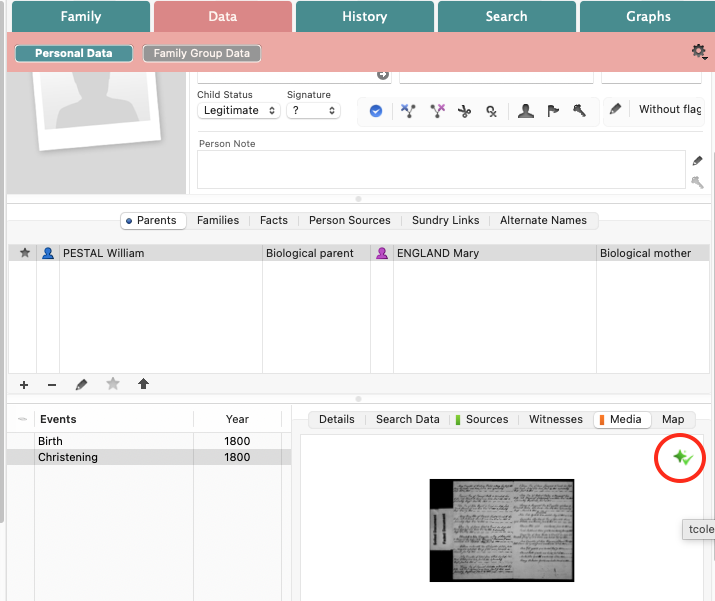
On the event’s Media tab, click the icon and follow the steps above.
In this case, this event will be populated with the information from the analysis. Note that the tool will only fill in the missing fields for this event. If a field such as the date or location is already filled in, it will not be modified so as not to alter the information you have entered.
Media Index
In the Media Index, an icon indicates whether your media files have been analyzed.
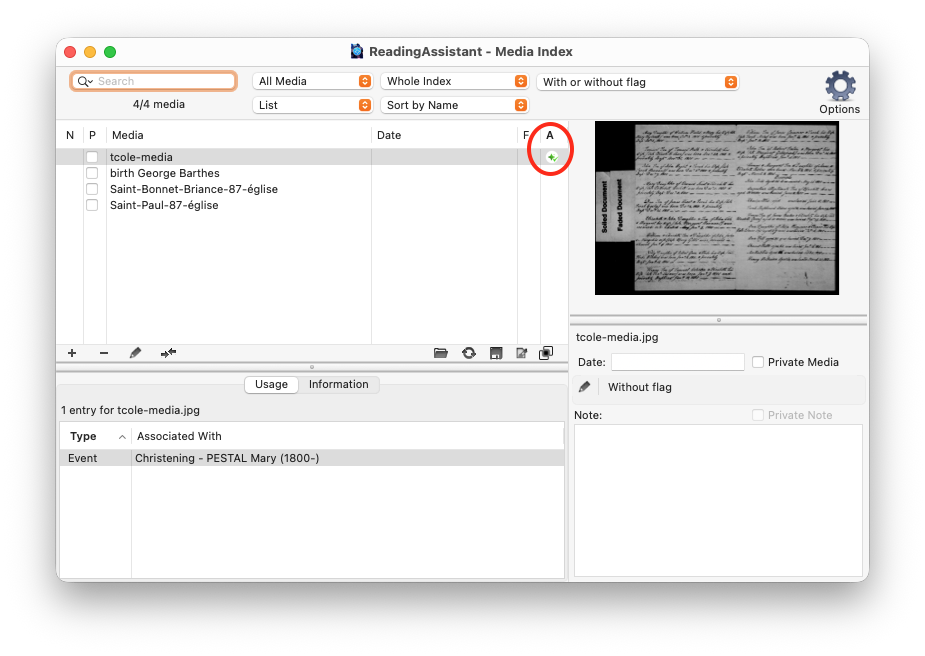
There is a filter that allows you to display only the media that have been analyzed.